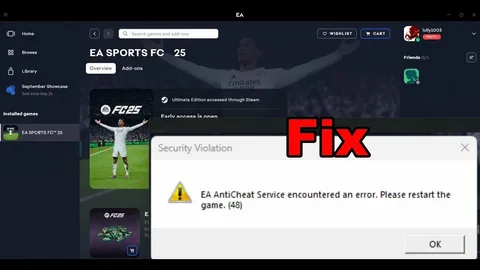
Fix the eaanticheatservice failed retrieving service path error by following this fully informative, step-by-step article written to help you resolve the issue permanently. Read carefully and apply each solution in order to ensure your EA games run smoothly without launch failures.
Understand the EAANTICHEATSERVICE Failed Retrieving Service Path Error
Recognize that the eaanticheatservice failed retrieving service path error occurs when Windows cannot locate or start the EA Anti-Cheat service correctly. Understand that this service is mandatory for running many EA games, including competitive multiplayer titles. Accept that when the service path is missing, corrupted, or blocked, the game will refuse to launch.
Acknowledge that this error usually appears after a failed update, corrupted installation, registry conflict, permission issue, or interference from antivirus software. Identify this message as a system-level problem rather than a simple game bug.
Identify the Main Causes of the Error
Determine the root cause before applying fixes. Focus on the following common triggers:
- Detect corrupted or missing EA Anti-Cheat files
- Identify incorrect or broken Windows registry service paths
- Check for insufficient administrator permissions
- Locate conflicts with antivirus or firewall software
- Verify improper game installation paths
- Notice incomplete game or EA App updates
Understanding these causes helps you apply the correct solution without unnecessary troubleshooting.
Repair or Reinstall EA Anti-Cheat Service
Repair the EA Anti-Cheat service first, as this resolves the error in most cases.
- Navigate to your game’s installation folder.
- Open the EA AntiCheat or EasyAntiCheat directory.
- Locate EAAntiCheat.Installer.exe.
- Right-click the file and select Run as administrator.
- Choose Uninstall to remove the existing service.
- Restart your computer.
- Run the installer again and select Install or Repair.
Reinstalling recreates the correct service path and fixes registry inconsistencies that cause the eaanticheatservice failed retrieving service path issue.
Run EA App and Game as Administrator
Grant full system access to the EA App and the game executable.
- Right-click the EA App
- Select Run as administrator
- Launch the game from within the EA App
- Also right-click the game’s
.exefile and enable Run this program as administrator in properties
Administrator privileges ensure the anti-cheat service can read and execute its service path without restriction.
Verify and Repair Game Files
Repair corrupted or missing files that may prevent the anti-cheat service from loading correctly.
For EA App:
- Open the EA App
- Go to your game library
- Click the three dots next to the game
- Select Repair
For Steam:
- Open Steam
- Right-click the game
- Select Properties
- Open Installed Files
- Click Verify integrity of game files
Allow the launcher to restore missing files automatically. This step frequently resolves the eaanticheatservice failed retrieving service path error.
Check EA Anti-Cheat Service Status in Windows
Ensure the service is properly registered and running.
- Press
Windows + R - Type
services.msc - Locate Easy Anti-Cheat or EA Anti-Cheat Service
- Open Properties
- Set Startup type to Automatic
- Click Start if the service is stopped
- Apply changes and restart your PC
This guarantees the service starts correctly every time Windows boots.
Disable Antivirus or Add Exclusions
Temporarily disable antivirus software to test for conflicts.
- Turn off real-time protection
- Launch the game
- If the error disappears, add exclusions for:
- EA App folder
- Game installation folder
- EA Anti-Cheat folder
Re-enable antivirus protection after adding exclusions. Security software often blocks anti-cheat files, leading to the eaanticheatservice failed retrieving service path message.
Clear EA App Cache
Remove corrupted cache data that may cause path recognition errors.
- Close the EA App completely
- Press
Windows + R - Type
%ProgramData%\EA Desktop - Delete all folders except Logs
- Restart your system
- Launch EA App again
Clearing the cache forces the EA App to rebuild configuration files correctly.
Update Windows and System Drivers
Install the latest updates to eliminate compatibility issues.
- Update Windows OS
- Update graphics drivers
- Update chipset and system drivers
Outdated system components may fail to register or communicate with the anti-cheat service properly.
Avoid Common Mistakes That Cause This Error
Prevent future issues by following these best practices:
- Install EA games on internal drives only
- Avoid modifying game files manually
- Do not disable Windows services unnecessarily
- Keep antivirus exclusions updated
- Always close EA App properly before shutdown
- Avoid third-party system cleaners that modify registry entries
These steps reduce the risk of seeing the eaanticheatservice failed retrieving service path error again.
Conclusion
Fix the eaanticheatservice failed retrieving service path error by repairing the anti-cheat service, restoring proper permissions, verifying game files, and eliminating software conflicts. Apply each solution carefully and systematically. Maintain system updates and avoid interference from security tools to ensure stable and uninterrupted gameplay.